Microsoft ends updates for Windows 11 23H2 Enterprise and Education: how to check your PC
Microsoft has stopped providing regular updates for Windows 11 version 23H2 Enterprise and Education, bringing the final commonly used editions of this release to the end of their update support. If you use a work or school PC, it is worth checking which version it runs before assuming it is still receiving monthly security fixes.
The end-of-updates date was November 10, 2026. Microsoft says devices on the affected editions will no longer receive monthly security updates containing protection against the latest threats after that date. The PC will not suddenly stop working, but staying on an unsupported release means missing future regular security updates.
This is a version-specific deadline, not the end of Windows 11 itself. Home and Pro editions of 23H2 reached their end of updates in November 2025, a year earlier. More recent Windows 11 releases remain supported according to Microsoft’s release information.
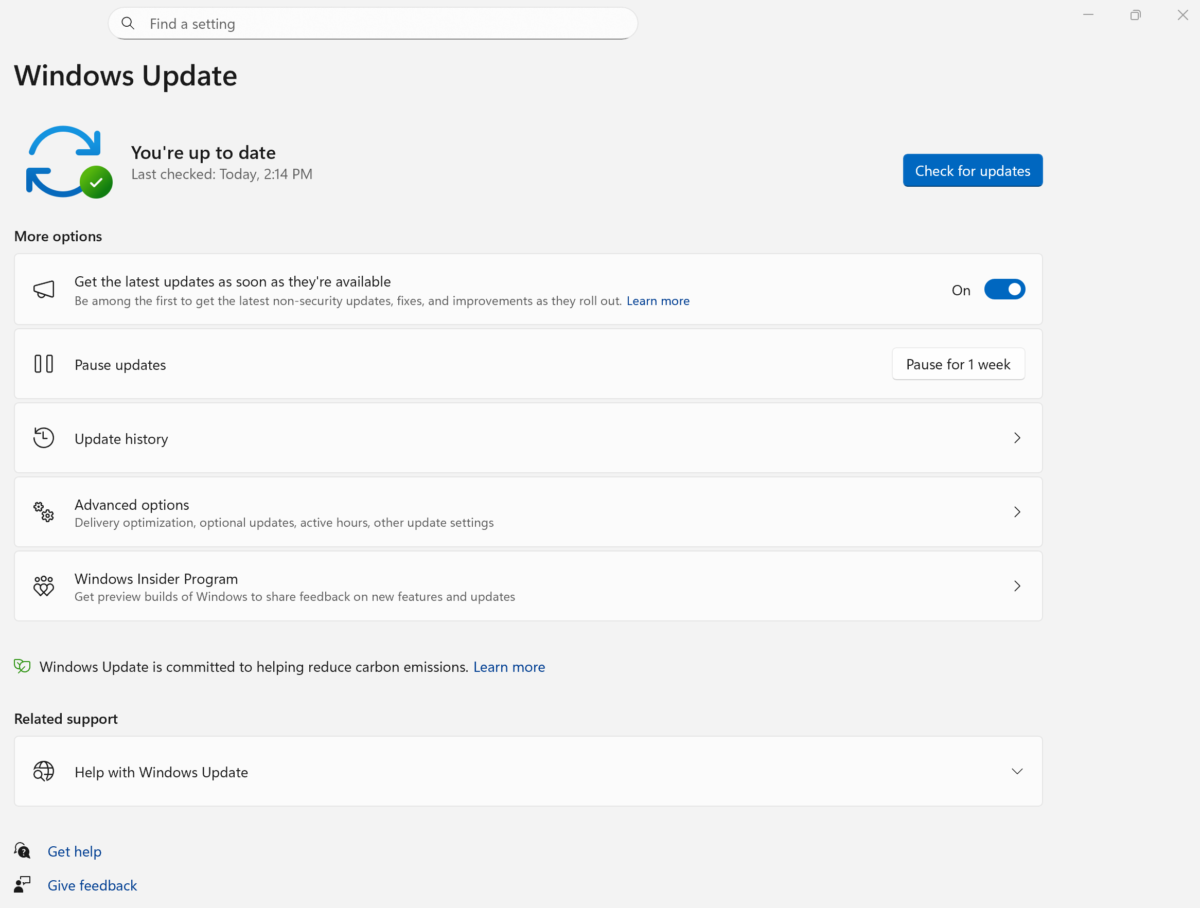
Windows Update can show available updates on an eligible PC. Image: Microsoft
How to check your Windows version
Open Settings > System > About and look under Windows specifications. The edition and version identify whether your PC is running Enterprise or Education and whether it is still on 23H2. You can also press the Windows key and R, type winver and press Enter to see the Windows version.
If the computer belongs to your employer or school, contact its IT team before making changes. Organisations can manage when feature updates are offered, and an administrator may need to deal with compatibility or deployment requirements.
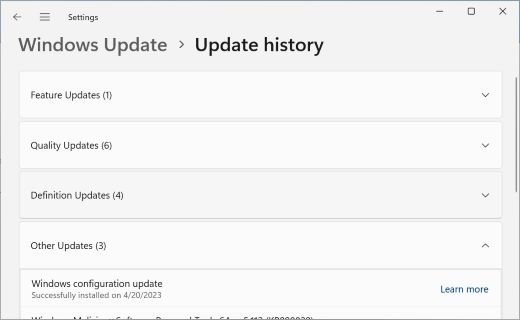
Update history groups installed updates by category. Image: Microsoft
What to do if your PC is still on 23H2
Microsoft recommends moving eligible devices to a supported Windows 11 version to keep receiving monthly security updates. On a personally managed PC, open Settings > Windows Update and select Check for updates to see what is offered. Availability can depend on the device and Microsoft’s compatibility safeguards, so a particular version may not appear immediately.
The company’s release table lists 25H2 and 26H2 as supported, while the Enterprise and Education editions of 24H2 are supported until October 2027. Home and Pro users should check their own edition’s dates: the table lists 24H2 as already at end of updates for those editions.
Microsoft also notes that 26H1 was designed for new devices and is not offered as an in-place feature update from 24H2 or 25H2 on existing PCs. A higher version number is therefore not a promise that every machine will see that version in Windows Update.
Before a feature update, save your work and make sure important files are backed up. If an eligible update does not appear, check with Microsoft’s support guidance or your organisation’s IT team rather than assuming the PC has already moved to a supported release.