“without Steam Link”: vrOS brings PC windows and VR streaming to Steam Frame
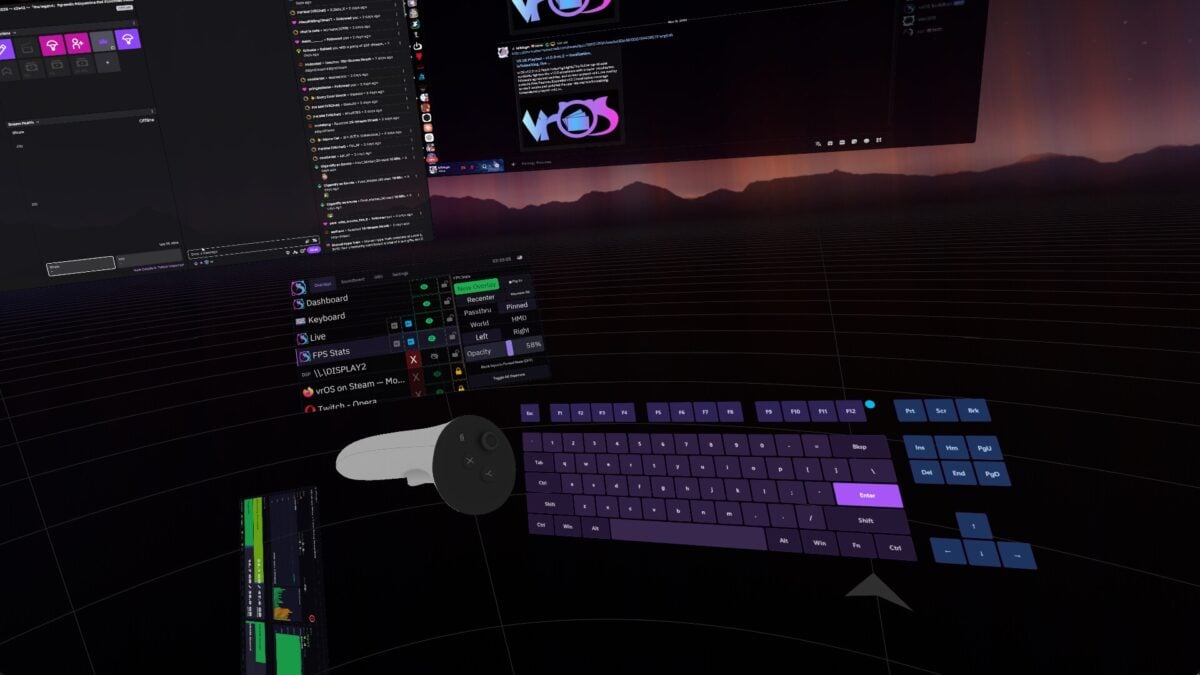
The third-party vrOS app can connect Steam Frame to a Windows PC, placing desktop windows on movable panels inside the headset and streaming PC VR games. Its developer says the new connection works “without Steam Link,” although the PC VR mode still uses SteamVR on the computer.
Version 3 of vrOS adds the PC connection over the Frame’s dongle or a home Wi-Fi network. Players can use the headset controllers as a pointer, type with a VR keyboard and bring multiple displays or individual windows into the headset.
vrOS is a separate paid Steam application, not a Valve update bundled with Steam Frame. The developer’s current notes say its streaming feature requires both a Steam Frame and a Windows PC; support for Linux PCs and other headsets is planned later.
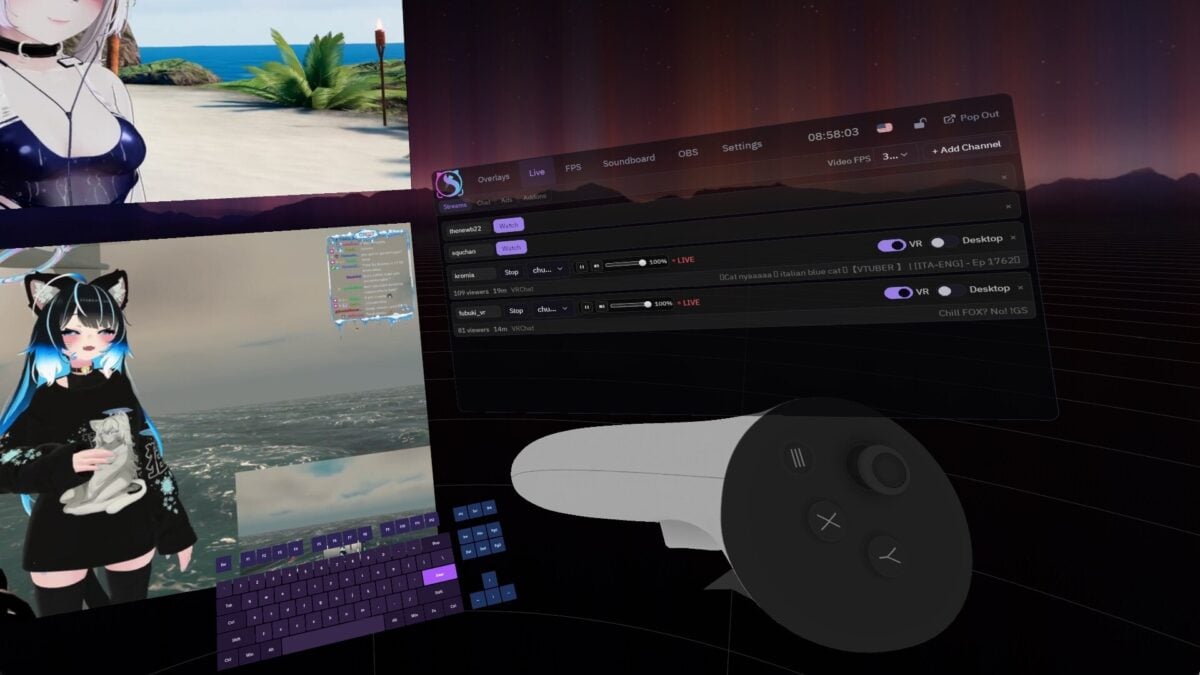
Image: catnet systems
Desktop panels and PC VR games use different modes
Connecting opens the PC’s main display as a panel over the Frame home environment without starting SteamVR on the PC, according to the developer. Additional displays or individual windows can be added and repositioned, and the layout is restored the next time the PC connects.
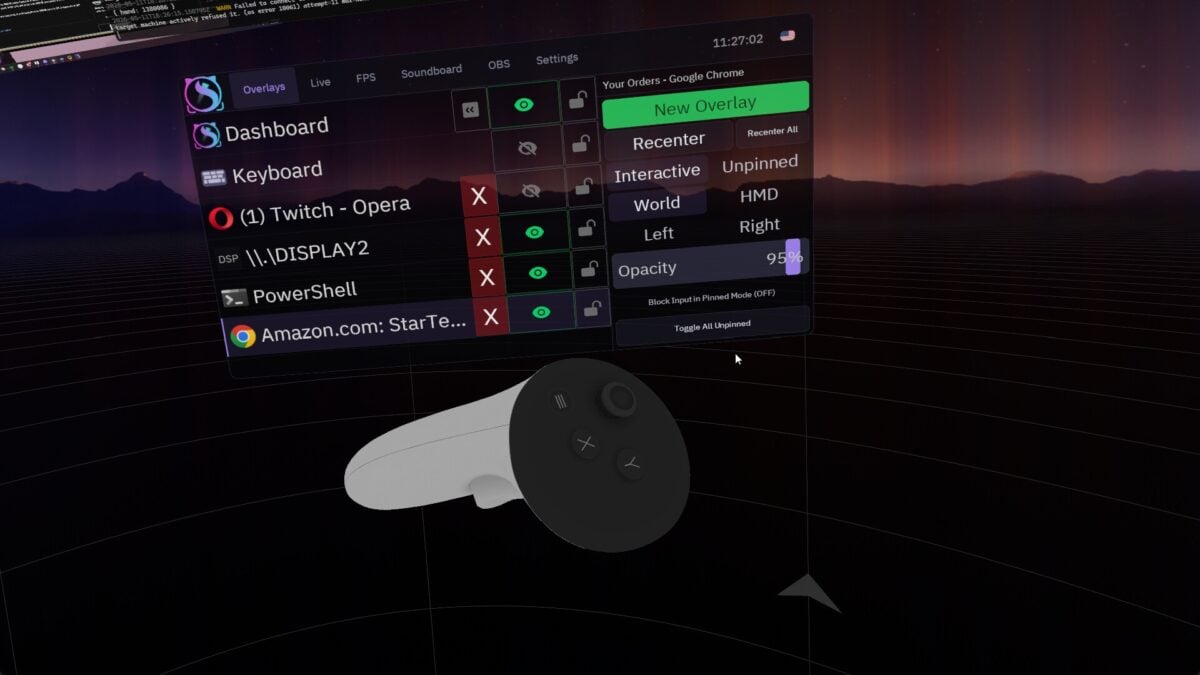
Image: catnet systems
For a PC VR game, vrOS uses a headset driver in the computer’s SteamVR installation. Its panels can remain available over the game. The app also provides a control for switching back to Steam Link, with a SteamVR restart that asks for confirmation.
Streaming settings include resolution per eye, bitrate and a choice of HEVC or PyroWave for games. HEVC is the default; the developer says a computer unable to encode HEVC falls back to PyroWave. These are options to test on a particular network and PC, not promises of a specific image quality or latency.
Image: catnet systems
Eye tracking can be shared with PC applications
An optional setting sends the headset’s gaze and eyelid data to PC applications while streaming. It is off by default. Foveated streaming also has Off, Gentle and Strong choices, with Strong selected by default.
A follow-up version 3.0.2 improves the welcome and pairing screens and fixes several startup and tracker-alignment problems. The developer says PC sound and the headset microphone use Steam’s streaming audio devices when installed, or the available PC defaults; a signed vrOS audio driver is planned for a later update.
Before buying, check the app’s Steam listing and hardware requirements. Features and compatibility can change as the project develops.