Steam's Big Picture mode adds Big Art Mode and a folder for your own screensavers
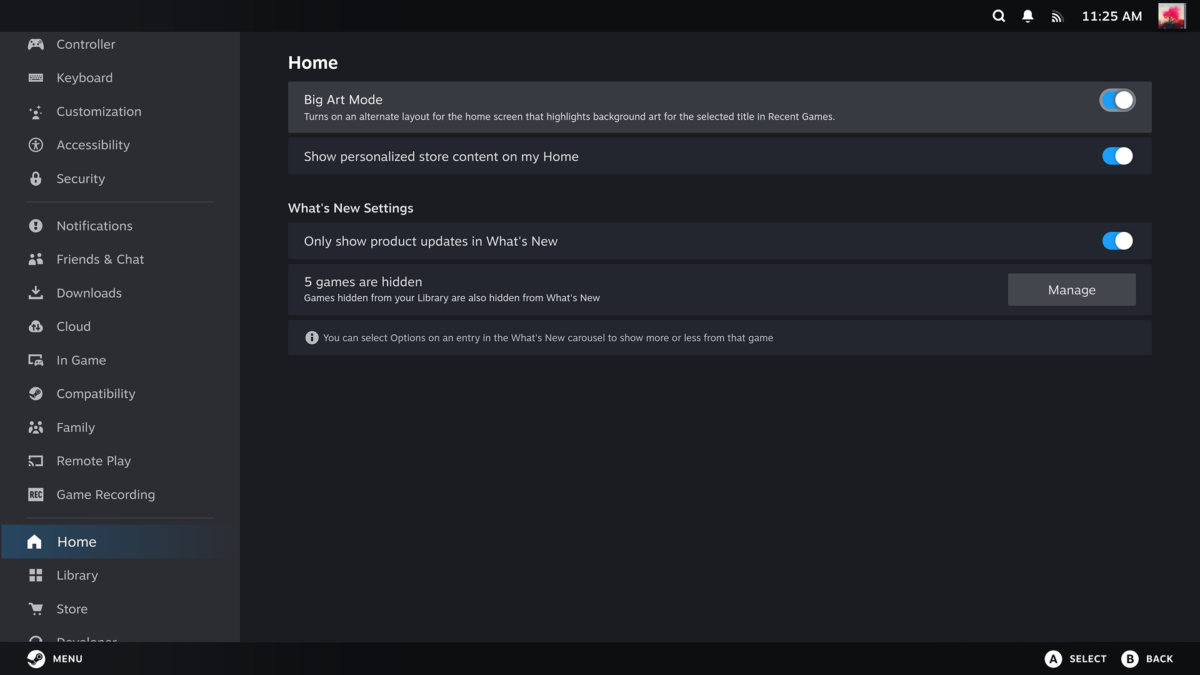
Steam’s Big Picture mode has a new home screen layout called Big Art Mode and a screensaver you can swap for your own. Valve’s client notes say Big Art Mode "can be enabled in Settings > Home" and that the new screensaver feature is "accessible in Settings > Customization".

One of the three screenshots Valve published with the new Big Picture screensaver. Image: Valve
This is the stable client, not a beta: Valve says the update "will be automatically downloaded", and posted it at 23:38 UTC on October 13.
Two screensavers ship, and a folder takes a third
The default one is "a game art slideshow that can be configured to show artwork from recently played games and your recent in-game screenshots". The alternative is "a retro inspired bouncing logo screensaver", and a new setting switches the screensaver off while a game is running.
Custom ones go in a directory. Valve says they work "similar to startup movies" and "can be placed in the config\uioverrides\screensavers directory in your Steam install directory", giving C:\Program Files (x86)\Steam and ~/.steam/root as the two worked examples, and it points at its own bouncing logo in steamui\screensavers as "an example to get started".
Big Art Mode is an option, not a new default
Valve describes Big Art Mode only as an option for the home screen, published with three screenshots and no further detail. The same home screen also gains a Personal Calendar on its Recommended tab.
Valve has also stopped the screensaver cutting in over video. Big Picture mode now delays dimming the screen or showing the screensaver "when the Steam Store, web browsers or other apps request to disable monitor sleep and screensavers while playing video".
Wi-Fi strength moves into the Big Picture header
Windows users get Wi-Fi strength and connection type in the Big Picture header, and anyone driving the interface with a mouse and keyboard gets keyboard glyphs in the footer instead of gamepad ones. Clicking a text field with a physical mouse now leaves the on-screen keyboard alone.
Valve has also fixed three on-screen keyboard faults: presses dropped during dual trackpad typing, the keyboard failing to appear in non-Steam games after a Wi-Fi toggle or a suspend, and the keyboard not working the first time it is called up on the desktop.
Valve also reorganised the idle-timer settings for battery and mains power, added warning text to the power menu when shutting down would kill a running game, and refreshed the default artwork Steam shows for an app with no library or hero image.
Valve’s beta channel had been carrying parts of this build since early October, including the change that runs non-Steam Windows programmes through Proton without asking and the October 9 build that switched HDR off when you stream to an OLED Steam Deck.
Valve does not say what format a custom screensaver has to be in, which leaves its own bouncing logo as both the example and the specification.