“Meta finally fixed the underlying issue”: Virtual Desktop’s Quest update adds a rooftop view
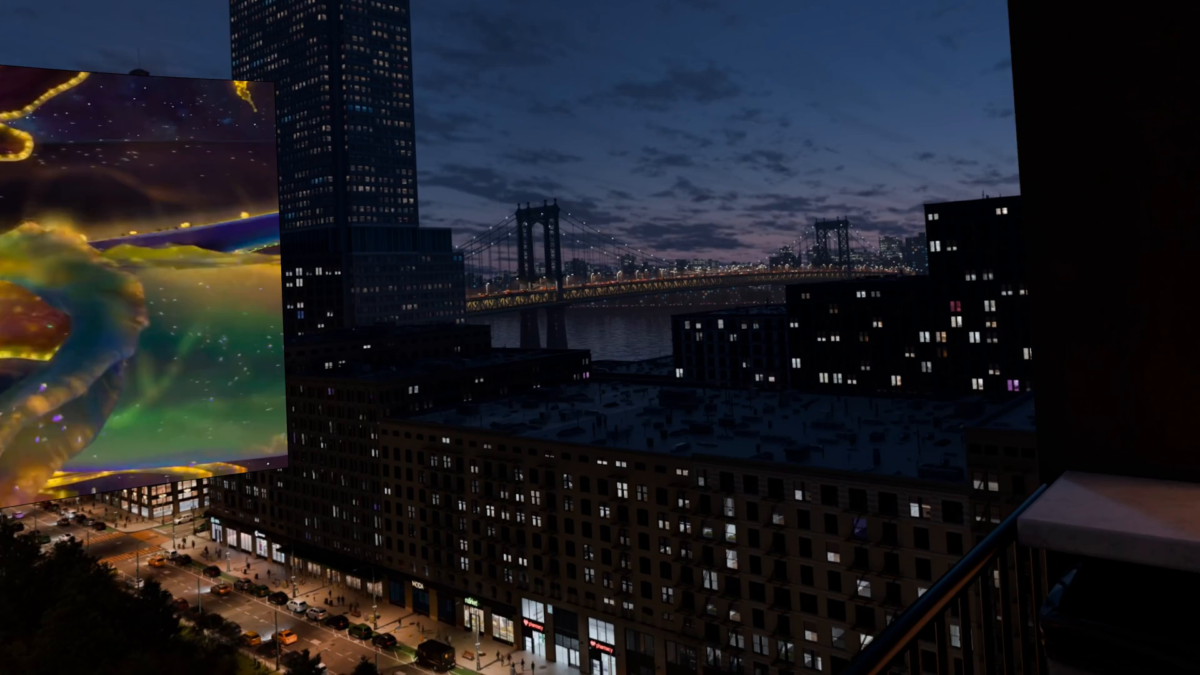
Virtual Desktop’s latest update gives headset owners a new place to watch a giant screen: a virtual rooftop bar overlooking New York. It also removes a workaround for a Quest 3 and 3S frame-rate issue that the app’s developer says Meta has addressed.
In a November 24 update post, Virtual Desktop creator Guy Godin said the app no longer needs the workaround because “Meta finally fixed the underlying issue” on November 23. That is the developer’s account; we have not independently measured the change or confirmed how it affects every setup.
The update also changes hand-tracking input for PC VR games and improves how monitors are arranged. Our featured image shows the Terrace environment in the developer’s video, while the screenshots below show earlier versions of Virtual Desktop.
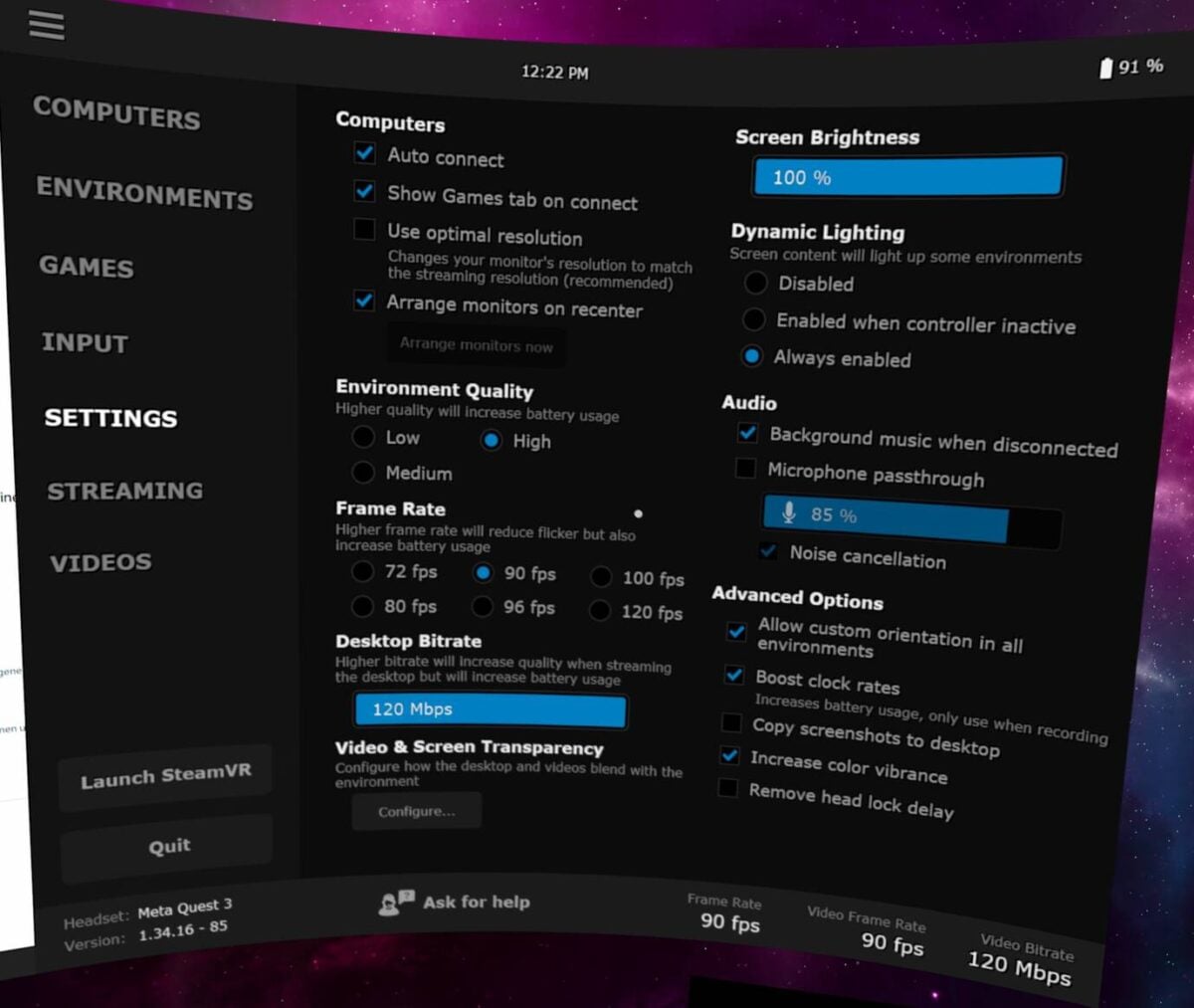
An earlier Virtual Desktop settings screen; the current interface may look different. Image: PlayerOne4280 / Microsoft Flight Simulator Forums
A rooftop bar becomes your virtual viewing room
The new environment is called Terrace. Godin describes it as a rooftop setting at dusk, with the Manhattan skyline and Brooklyn Bridge in view. Players can sit at a bar with a screen or switch to a larger curved screen above the city.
To find it, the developer says to open Virtual Desktop’s Environments menu and choose Terrace. It is a virtual setting for a screen, so watching a particular film or game still depends on having access to that content.
Virtual Desktop is designed to bring a computer into a headset. Its official site lists Quest 3 and 3S among the supported headsets and says PC VR game streaming requires a VR-ready Windows computer. A wireless network and your PC’s own performance can affect the experience too.
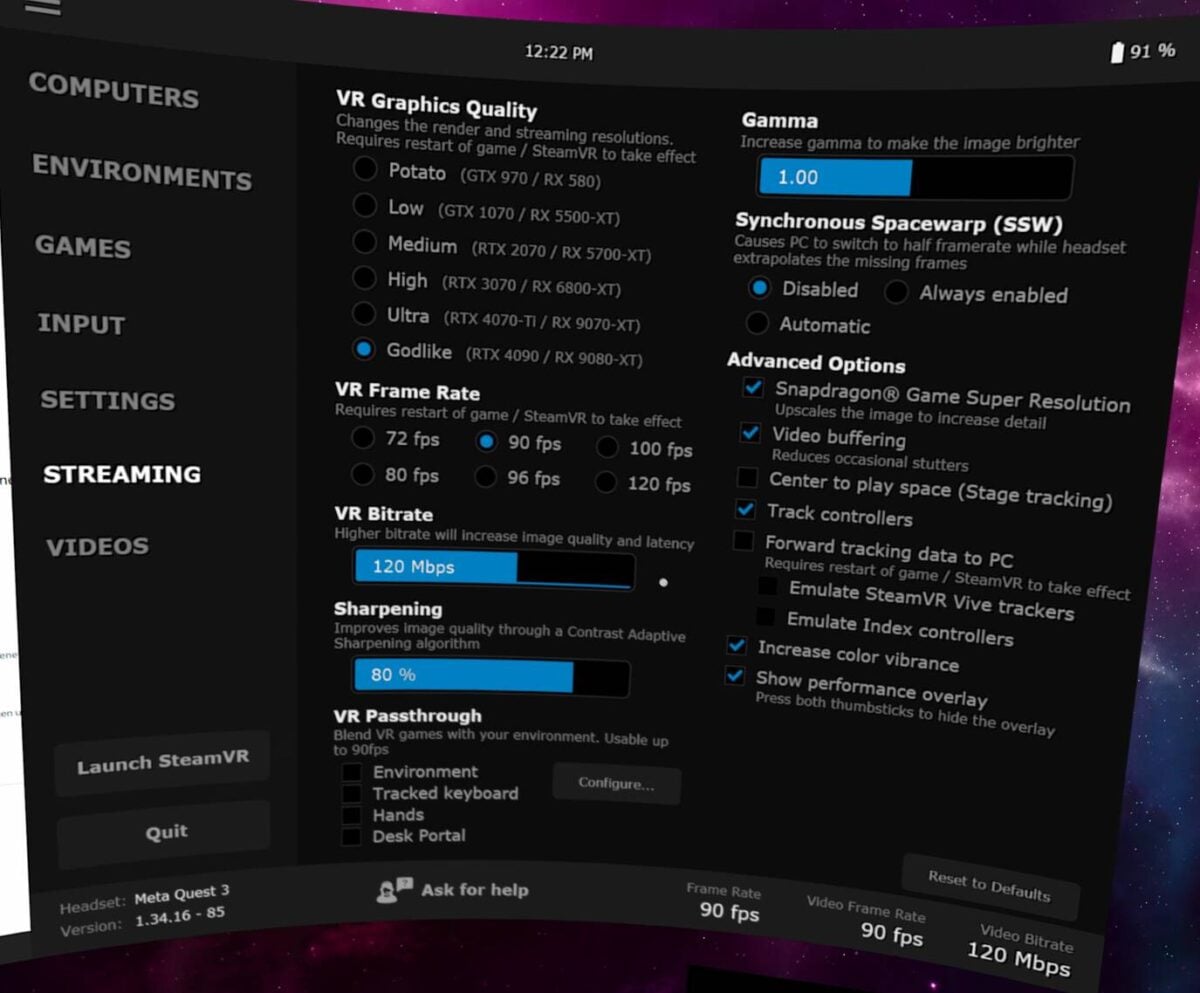
Virtual Desktop streams a computer to a compatible headset over a network. Image: PlayerOne4280 / Microsoft Flight Simulator Forums
The performance workaround is gone, according to the developer
Godin’s update notes specifically mention the Quest 3 and 3S when discussing the removed frame-rate degradation workaround. They do not provide a benchmark or say that all streaming problems have been resolved, so I would check performance on your own setup after updating rather than expecting a particular frame-rate gain.
The app also improves monitor arrangement, including with flat screens. For Android XR, the notes list a controller throwing fix. Meanwhile, in PC VR games, hand tracking now uses a pinch to emulate a trigger instead of the previous gun-trigger gesture.
Those changes serve different parts of the app. If you mostly use Virtual Desktop as a large monitor, the new room and screen arrangement may be the features you notice first. If you stream VR games, the input and performance notes are the more useful ones to check.
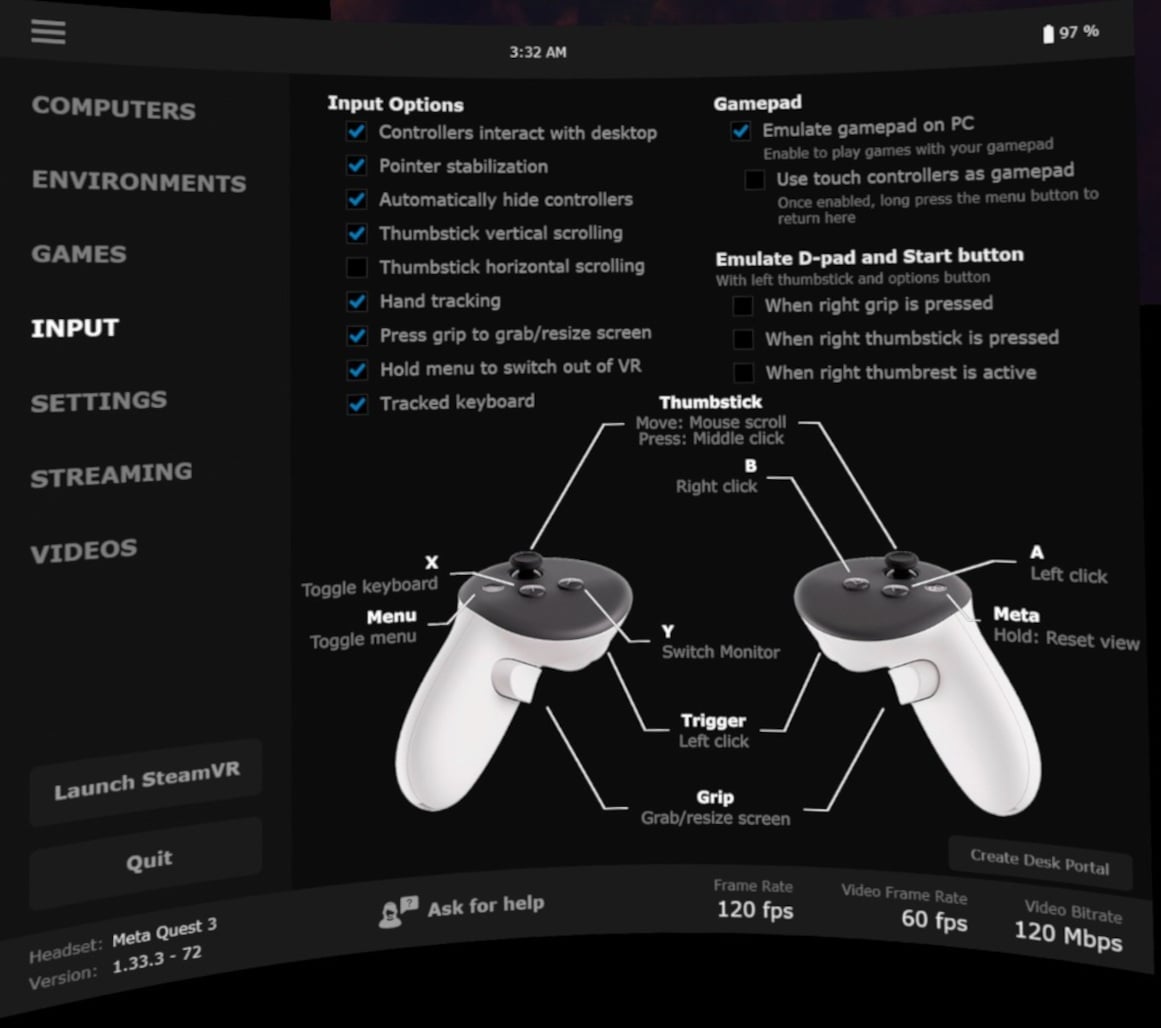
The developer says the new update changes a hand-tracking gesture in PC VR games. Image: VR Discord
Check the app and PC requirements before setting up
For shoppers considering a headset, the Meta Quest 3 is one supported option. You still need the appropriate Virtual Desktop app and a compatible computer for desktop streaming; a headset purchase does not include a gaming PC or guarantee that every game will work.
It is also worth checking which app edition you are buying. The developer distinguishes the standalone headset version from Virtual Desktop Classic on Steam, which is for a different group of PC-connected headsets. If your current setup is already working, there is no reason to replace the hardware just for a new environment.
Image credit: Guy Godin / Virtual Desktop; PlayerOne4280 / Microsoft Flight Simulator Forums; VR Discord.
Note: Links to online stores in articles can be so-called affiliate links. If you buy through this link, MIXED receives a commission from the provider. For you the price does not change.
As an Amazon Associate we earn from qualifying purchases.