ROG Xbox Ally X gets Microsoft’s Auto SR without a dock, with a 120 fps mode on the way

Microsoft’s Automatic Super Resolution has left preview on the ROG Xbox Ally X and X20, and it now works on their built-in screens without a dock. A Performance Mode with support for up to 120 frames per second is also coming through Windows updates.
The timing of those features is different. Microsoft says handheld use, 1080p game support and availability on select AMD Ryzen-powered Copilot+ PCs are available now. Performance Mode and compatibility with Auto HDR are rolling out through Windows updates and may not have reached every device.
The rollout covers the ROG Xbox Ally X and X20, not every device with an Ally name. Check Microsoft’s compatibility information before assuming the feature will be available on another model.
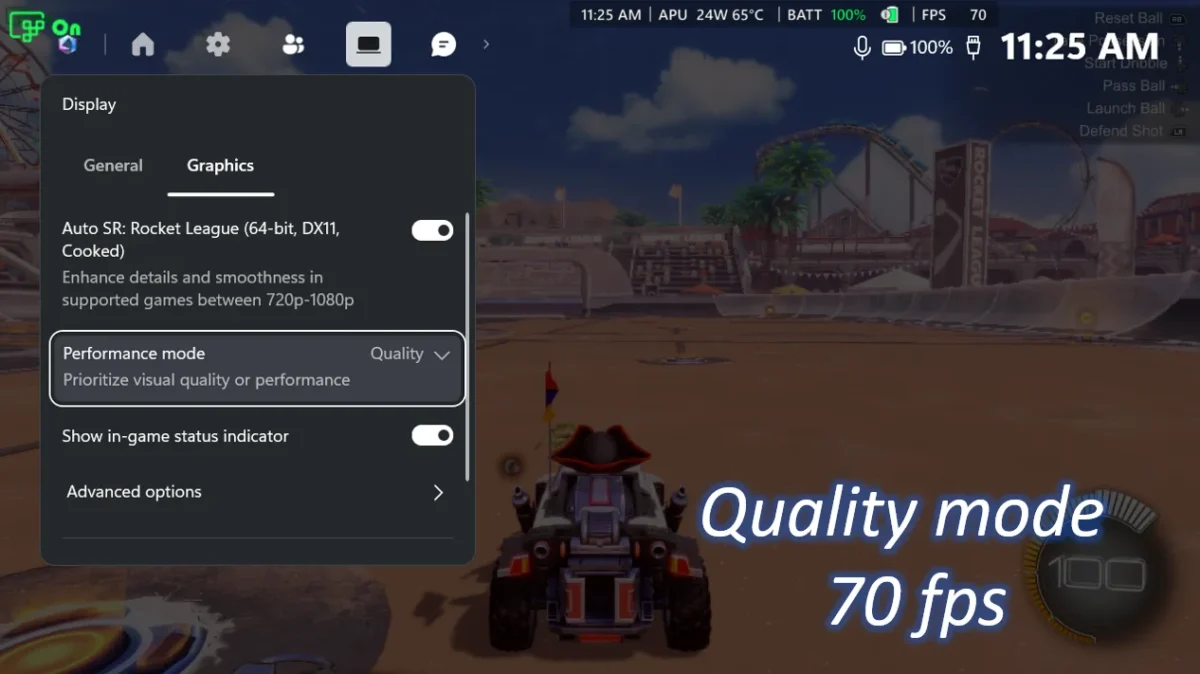
Image: Microsoft
The useful change for handheld players
During the Xbox Insider preview, Auto SR on the supported handhelds required an external display. The released version can operate on the internal screen, including while the device runs on battery.
It also supports games running at 1080p. When connected to a higher-resolution display, Microsoft says Auto SR can upscale to 1440p. The company cautions that 1080p use on the handheld’s own screen may not be as performant as other configurations, even if it improves image quality in some older games.
Auto SR uses AI-based upscaling to process the game image. Results depend on the game and setup; the new support does not mean every title will run at 120 fps.
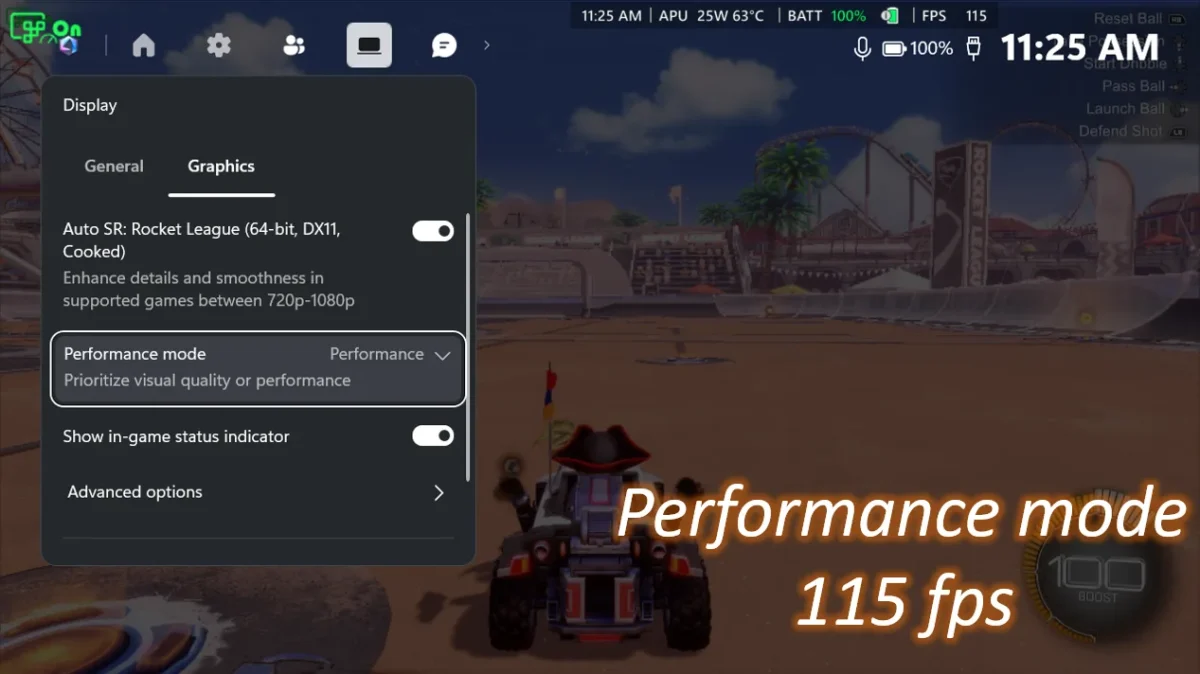
Image: Microsoft
Why the 120 fps option may not appear yet
Microsoft says the new Performance Mode raises the supported ceiling from roughly 60 to 75 fps to as much as 120 fps. In Microsoft’s own Rocket League example, the Ally X averaged 70 fps in Quality Mode and 115 fps in Performance Mode at 720p with high in-game settings. Those figures are not our independent test or a guarantee for other games.
Image: ASUS
To get started, Microsoft recommends updating Windows 11 and Game Bar, then installing or updating the Auto Super Resolution Package from the Microsoft Store. In Game Bar, open Widgets, then Display and Graphics. Performance Mode and Auto HDR support may appear later as updates reach the device.